
TUTORIALS • FOUNDATIONS
Rendering a Matte Cone in Illustrator
Rendering a basic cone in Adobe Illustrator introduces a unique structural challenge: standard linear or radial gradients do not wrap correctly around a tapered form. Understanding how to engineer this complex gradient will unlock your ability to create subtle, photorealistic shading across highly complex anatomical and scientific vectors.
The result of this tutorial is a matte (non-reflective) cone. The only difference between this foundational shape and a high-fidelity biological illustration is the time spent layering secondary stylizations, reflected ambient light, and cast shadows.
The Studio Toolbox
Illustrator Tools
Before we begin, ensure you are familiar with these core tools:
Ellipse Tool (
L): * Shift + Drag to pull a perfect circle. Opt/Alt + Drag to pull from the center.Selection Tools: * Black Arrow (
V): Selects and moves whole objects.White Arrow/Direct Selection (
A): Selects and adjusts individual anchor points.
Anchor Point Tool (
Shift + C): Converts a smooth curve anchor into a sharp, geometric corner.Paste in Place:
Cmd/Ctrl + F(Paste in Front) orShift + Cmd/Ctrl + V.Draw Inside (
Shift + D): A clipping mode that confines any new shapes or brushstrokes to the boundaries of the selected object.Object Blends:
Object > Blend > Maketo calculate a smooth transition between two vector shapes.Freeform Gradient Tool (
G): The modern Illustrator feature for adding complex color stops inside a single vector shape.
The Studio Toolbox
Illustrator Tools
Before we begin, ensure you are familiar with these core tools:
Ellipse Tool (
L): * Shift + Drag to pull a perfect circle. Opt/Alt + Drag to pull from the center.Selection Tools: * Black Arrow (
V): Selects and moves whole objects.White Arrow/Direct Selection (
A): Selects and adjusts individual anchor points.
Anchor Point Tool (
Shift + C): Converts a smooth curve anchor into a sharp, geometric corner.Paste in Place:
Cmd/Ctrl + F(Paste in Front) orShift + Cmd/Ctrl + V.Draw Inside (
Shift + D): A clipping mode that confines any new shapes or brushstrokes to the boundaries of the selected object.Object Blends:
Object > Blend > Maketo calculate a smooth transition between two vector shapes.Freeform Gradient Tool (
G): The modern Illustrator feature for adding complex color stops inside a single vector shape.
Step 1:
The Blueprint & Architecture
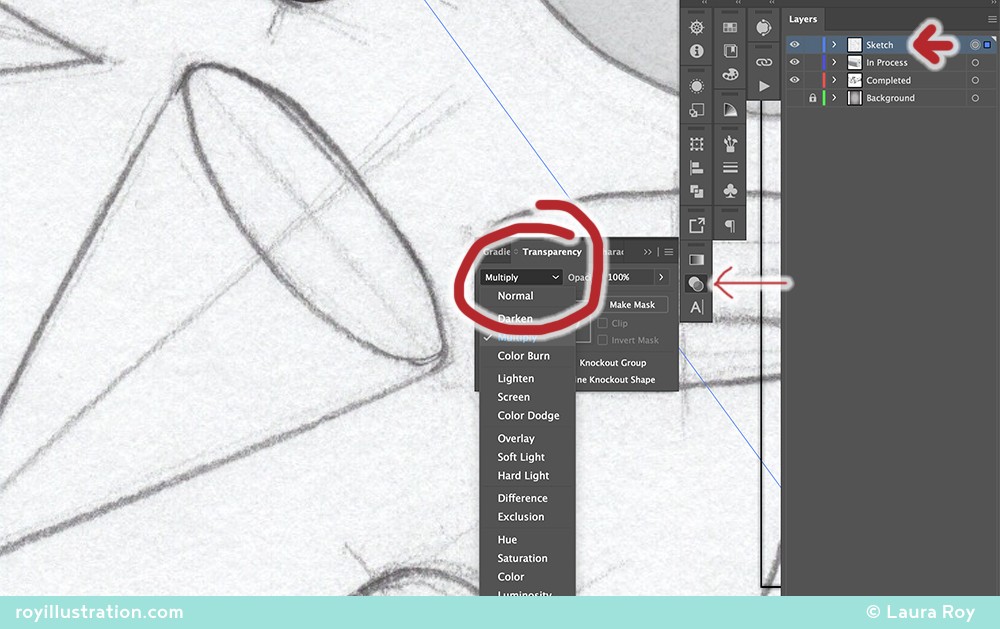
Sketch a cone in perspective. Place your sketch into your Illustrator document.
Crucial Setup: Verify your document is in RGB Color Mode (
File > Document Color Mode > RGB). Complex blends and gradients often calculate muddy transitions in CMYK.Layer Hierarchy: Create three new layers and organize them logically:
Top Layer: "Sketch" (Set Blend Mode to Multiply, lock the layer).
Middle Layer: "In Progress" (This is your active canvas).
Bottom Layer: "Background" (Add a flat rectangle here for contrast).
Step 1:
The Blueprint & Architecture
Sketch a cone in perspective. Place your sketch into your Illustrator document.
Crucial Setup: Verify your document is in RGB Color Mode (
File > Document Color Mode > RGB). Complex blends and gradients often calculate muddy transitions in CMYK.Layer Hierarchy: Create three new layers and organize them logically:
Top Layer: "Sketch" (Set Blend Mode to Multiply, lock the layer).
Middle Layer: "In Progress" (This is your active canvas).
Bottom Layer: "Background" (Add a flat rectangle here for contrast).
Step 2:
Constructing the Vector Silhouette
We will build the cone using precision path manipulation.
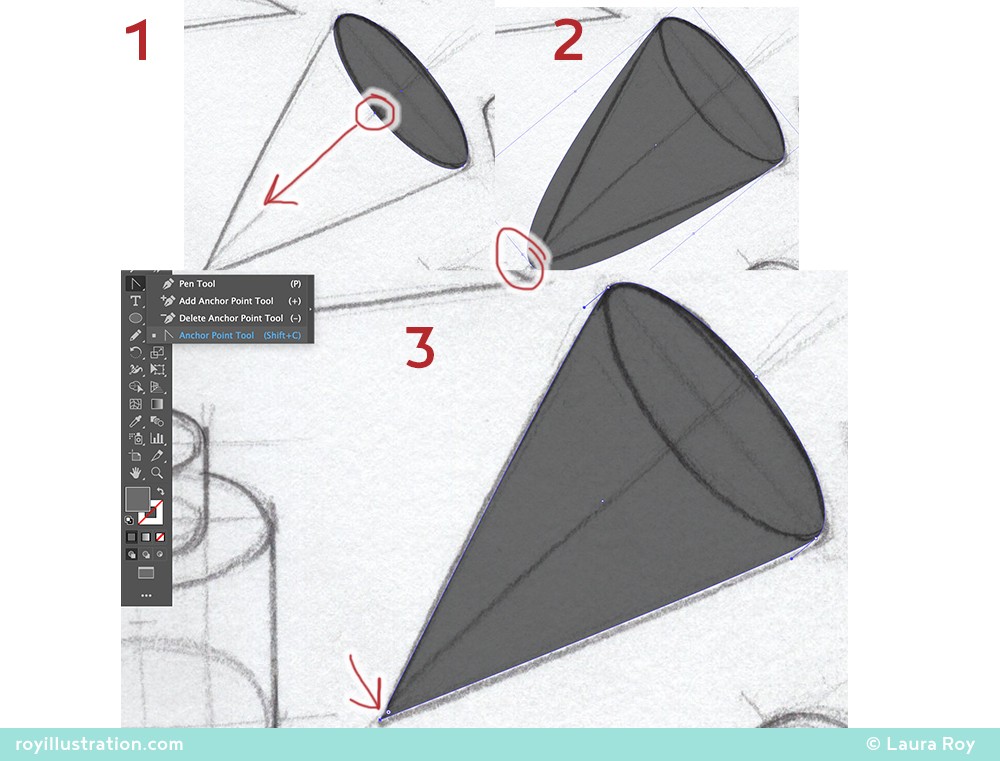
The Base: Use the Ellipse Tool (
L) to create the cone's base. Use the Black Arrow (V) to transform it to match your sketch's perspective.The Cone Body: Copy your base ellipse (
Cmd/Ctrl + C) and Paste in Front (Cmd/Ctrl + F).Activate the White Arrow (
A). Select the top anchor point of this new ellipse and drag it straight up to the tip of your sketched cone.Make it a Point: Activate the Anchor Point Tool (
Shift + C) and click that top point to convert it from a smooth curve to a sharp corner.
Step 2:
Constructing the Vector Silhouette
We will build the cone using precision path manipulation.
The Base: Use the Ellipse Tool (
L) to create the cone's base. Use the Black Arrow (V) to transform it to match your sketch's perspective.The Cone Body: Copy your base ellipse (
Cmd/Ctrl + C) and Paste in Front (Cmd/Ctrl + F).Activate the White Arrow (
A). Select the top anchor point of this new ellipse and drag it straight up to the tip of your sketched cone.Make it a Point: Activate the Anchor Point Tool (
Shift + C) and click that top point to convert it from a smooth curve to a sharp corner.
Step 3:
Sculpting with Blends (The Classic Method)
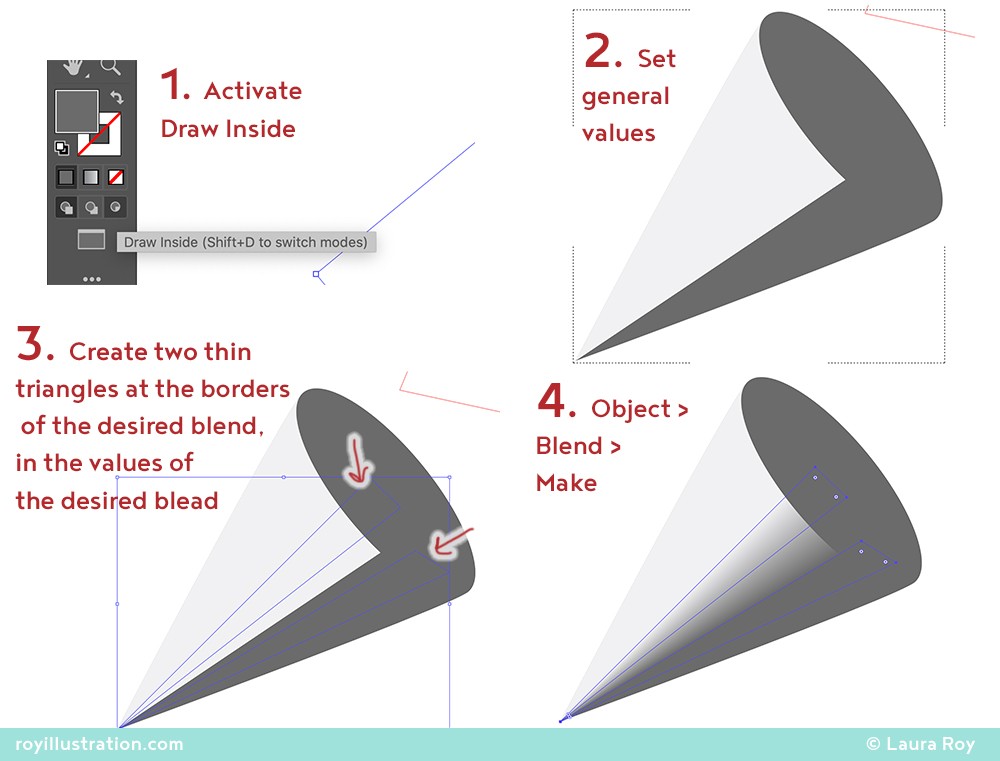
Fill the Front Cap: Create a New Layer. Double-click your Foreground Color and choose a light grey. Select Ellipse 1 with the Black Arrow. In your Paths Panel, click the solid circle at the bottom ("Fill path with foreground color").
Fill the Body: Create a second New Layer. Select both Ellipse 2 and Path 3 using the Black Arrow (hold Shift to select both).
Along the top options bar, change the Path Operations setting to "Combine Shapes".
Click the "Fill path" circle in the Paths Panel. Both paths will fill as one unified shape.
In your Layers Panel, drag the "Body" layer below the "Front Cap" layer so the cap sits cleanly on top.
Step 3:
Sculpting with Blends (The Classic Method)
Fill the Front Cap: Create a New Layer. Double-click your Foreground Color and choose a light grey. Select Ellipse 1 with the Black Arrow. In your Paths Panel, click the solid circle at the bottom ("Fill path with foreground color").
Fill the Body: Create a second New Layer. Select both Ellipse 2 and Path 3 using the Black Arrow (hold Shift to select both).
Along the top options bar, change the Path Operations setting to "Combine Shapes".
Click the "Fill path" circle in the Paths Panel. Both paths will fill as one unified shape.
In your Layers Panel, drag the "Body" layer below the "Front Cap" layer so the cap sits cleanly on top.
Step 4:
Refinement & Cleanup
Now we paint the form shadow to give the cylinder volume.
Select the "Body" layer.
Click the Lock Transparent Pixels icon (the small checkerboard in the Layers panel) so your brushstrokes only affect the existing shape.
Select the Brush Tool (
B), choose a large, soft-round brush, and pick your shadow value.Paint a smooth shadow along the length of the cylinder.
Note: The transition should not extend across the entire shape; it should only transition where the shadow wraps around the edge of the physical form, accurately suggesting your light source.
Step 4:
Refinement & Cleanup
Now we paint the form shadow to give the cylinder volume.
Select the "Body" layer.
Click the Lock Transparent Pixels icon (the small checkerboard in the Layers panel) so your brushstrokes only affect the existing shape.
Select the Brush Tool (
B), choose a large, soft-round brush, and pick your shadow value.Paint a smooth shadow along the length of the cylinder.
Note: The transition should not extend across the entire shape; it should only transition where the shadow wraps around the edge of the physical form, accurately suggesting your light source.
The Modern Alternative
Freeform Gradients
If Object Blends feel clunky, modern versions of Illustrator offer the Freeform Gradient Tool, which solves complex tapered shading instantly.
Select your pointed cone shape.
Open the Gradient Panel and select the third icon: Freeform Gradient.
Choose "Lines" instead of "Points" in the Gradient panel settings.
Click near the tip of the cone to drop a color stop, and drag the line down to the base along the shadow edge. You can assign dark values to this line, and light values to points on the other side of the cone. Illustrator will mathematically calculate the perfect tapered curve between them.
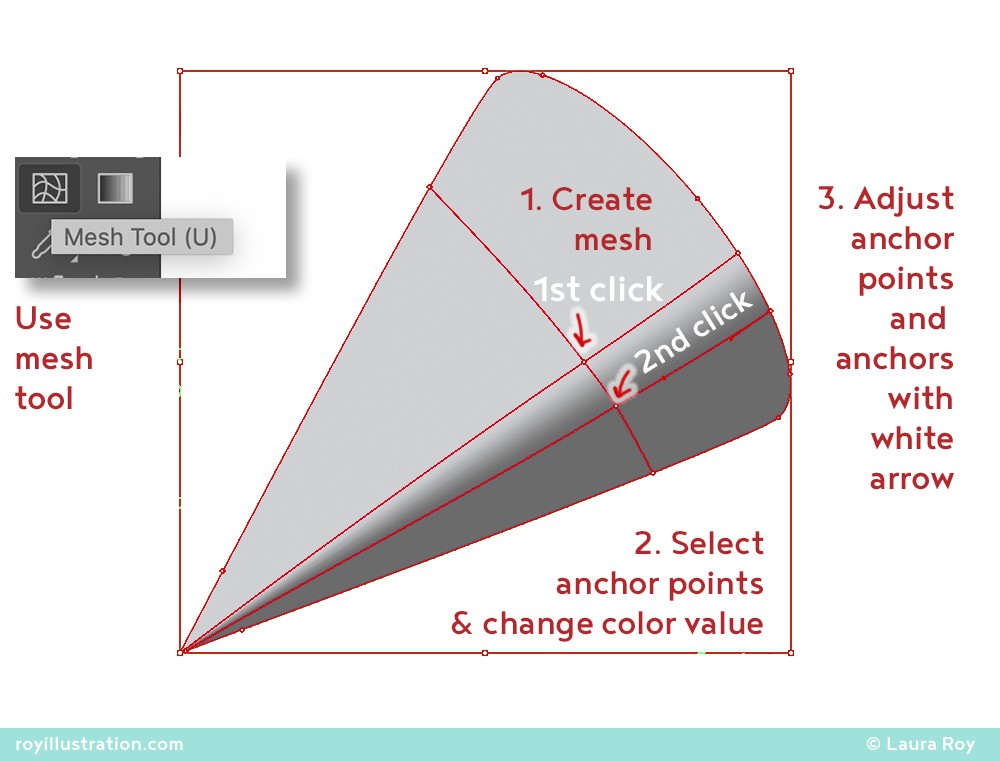
Classic Mesh Note: If you prefer the old-school Gradient Mesh Tool (
U), click along the edge of your core shadow to drop a mesh grid, then use the White Arrow (A) to select specific nodes and assign them dark or light values from your swatches.
The Modern Alternative
Freeform Gradients
If Object Blends feel clunky, modern versions of Illustrator offer the Freeform Gradient Tool, which solves complex tapered shading instantly.
Select your pointed cone shape.
Open the Gradient Panel and select the third icon: Freeform Gradient.
Choose "Lines" instead of "Points" in the Gradient panel settings.
Click near the tip of the cone to drop a color stop, and drag the line down to the base along the shadow edge. You can assign dark values to this line, and light values to points on the other side of the cone. Illustrator will mathematically calculate the perfect tapered curve between them.
Classic Mesh Note: If you prefer the old-school Gradient Mesh Tool (
U), click along the edge of your core shadow to drop a mesh grid, then use the White Arrow (A) to select specific nodes and assign them dark or light values from your swatches.
Key Takeaways
Vector Paths for Flawless Silhouettes
Mastering tapered vectors requires thinking beyond standard linear gradients. Using "Draw Inside" with Object Blends gives you ultimate structural control, while the modern Freeform Gradient tool offers rapid, photorealistic color mapping.
The exact same technique used to render this cone is what I use to light microscopic cellular structures and complex surgical instruments. If you discover a new variation, share it with me!
Key Takeaways
Vector Paths for Flawless Silhouettes
Mastering tapered vectors requires thinking beyond standard linear gradients. Using "Draw Inside" with Object Blends gives you ultimate structural control, while the modern Freeform Gradient tool offers rapid, photorealistic color mapping.
The exact same technique used to render this cone is what I use to light microscopic cellular structures and complex surgical instruments. If you discover a new variation, share it with me!
Did you find this helpful? Do you have any of your own tips you'd like to share? I'd love to hear about it if you decide to try something new. If you use it differently, I'd love to hear that, too!

-Laura
Did you find this helpful? Do you have any of your own tips you'd like to share? I'd love to hear about it if you decide to try something new. If you use it differently, I'd love to hear that, too!