
TUTORIALS • FOUNDATIONS
Rendering a Matte Cone in Photoshop
Mastering a simple cone in Photoshop is the perfect exercise for building agility with the Brush tool and expanding your precision with Vector Paths.
In this tutorial, we are going to render a matte (non-reflective) cone. The only difference between this fundamental shape and a highly complex scientific or anatomical object is the time spent adding secondary details like reflected light, cast shadows, and surface textures.
The Studio Toolbox
Photoshop Tools
Before we begin, ensure you are familiar with these core tools:
Ellipse Tool (
UorShift + U): Set to "Path" in your top options bar.Drag to pull out an ellipse.
Opt/Alt + Drag to pull an ellipse from the center.
Shift + Opt/Alt + Drag to pull a perfect circle from the center.
Free Transform (
Cmd/Ctrl + T): * Modern PS Update: In current versions of Photoshop, dragging a corner scales proportionally by default. HoldShiftif you actively want to stretch or distort the shape.Path Selection Arrows (
AorShift + A): * Black Arrow: Selects and moves whole paths.White Arrow (Direct Selection): Selects and adjusts individual anchor points.
Convert Point Tool: Nested under the Pen tool (
P). Changes a smooth curve anchor into a sharp corner.Brush Tool (
B): For painting in lighting transitions.
The Studio Toolbox
Photoshop Tools
Before we begin, ensure you are familiar with these core tools:
Ellipse Tool (
UorShift + U): Set to "Path" in your top options bar.Drag to pull out an ellipse.
Opt/Alt + Drag to pull an ellipse from the center.
Shift + Opt/Alt + Drag to pull a perfect circle from the center.
Free Transform (
Cmd/Ctrl + T): * Modern PS Update: In current versions of Photoshop, dragging a corner scales proportionally by default. HoldShiftif you actively want to stretch or distort the shape.Path Selection Arrows (
AorShift + A): * Black Arrow: Selects and moves whole paths.White Arrow (Direct Selection): Selects and adjusts individual anchor points.
Convert Point Tool: Nested under the Pen tool (
P). Changes a smooth curve anchor into a sharp corner.Brush Tool (
B): For painting in lighting transitions.
Step 1:
The Blueprint
Sketch a cone in perspective, keeping the rules of 1, 2, or 3-point perspective in mind.
Place your sketch in your Photoshop document as the top layer.
Set the sketch layer's Blend Mode to Multiply. This allows you to see your linework over the digital paint as we work.
Step 1:
The Blueprint
Sketch a cone in perspective, keeping the rules of 1, 2, or 3-point perspective in mind.
Place your sketch in your Photoshop document as the top layer.
Set the sketch layer's Blend Mode to Multiply. This allows you to see your linework over the digital paint as we work.
Step 2:
Vector Architecture
We will use paths to create a mathematically clean base for our shape.
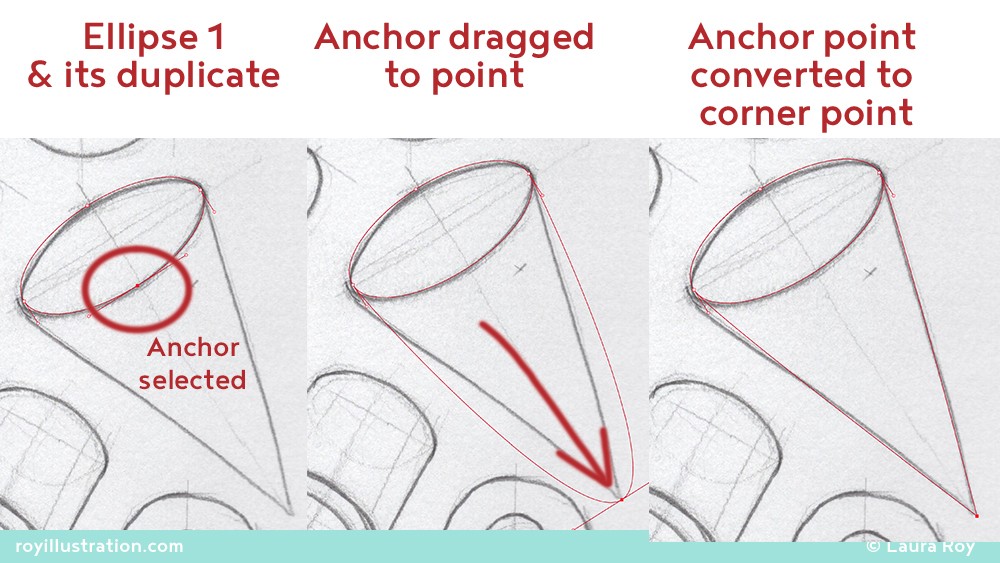
The Base: Use the Ellipse tool (
U) to draw an ellipse that perfectly fits the base of your sketched cone. UseCmd/Ctrl + Tto rotate and scale it until the degree and orientation are correct.The Point: Select your base ellipse with the Black Arrow (
A), copy it (Cmd/Ctrl + C), and paste it (Cmd/Ctrl + V) to duplicate the path.Switch to the White Arrow, select the anchor point closest to the tip of the cone, and drag it up to the point.
Select the Convert Point Tool and click that top anchor to change it from a smooth curve to a sharp, precise corner.
Step 2:
Vector Architecture
We will use paths to create a mathematically clean base for our shape.
The Base: Use the Ellipse tool (
U) to draw an ellipse that perfectly fits the base of your sketched cone. UseCmd/Ctrl + Tto rotate and scale it until the degree and orientation are correct.The Point: Select your base ellipse with the Black Arrow (
A), copy it (Cmd/Ctrl + C), and paste it (Cmd/Ctrl + V) to duplicate the path.Switch to the White Arrow, select the anchor point closest to the tip of the cone, and drag it up to the point.
Select the Convert Point Tool and click that top anchor to change it from a smooth curve to a sharp, precise corner.
Step 3:
Establishing the Fill
Fill the Base: Create a New Layer. Double-click your Foreground Color and choose a light grey. Select your bottom ellipse path with the Black Arrow. In your Paths Panel, click the solid circle at the bottom left ("Fill path with foreground color").
Fill the Point: Create a second New Layer. Select your pointed cone path with the Black Arrow. Click the "Fill path" circle again.
In your Layers Panel, drag the "Base" layer below the "Point" layer so the shapes overlap correctly.
Step 3:
Establishing the Fill
Fill the Base: Create a New Layer. Double-click your Foreground Color and choose a light grey. Select your bottom ellipse path with the Black Arrow. In your Paths Panel, click the solid circle at the bottom left ("Fill path with foreground color").
Fill the Point: Create a second New Layer. Select your pointed cone path with the Black Arrow. Click the "Fill path" circle again.
In your Layers Panel, drag the "Base" layer below the "Point" layer so the shapes overlap correctly.
Step 4:
Sculpting with Light
Now we will paint the form shadow to give the shape dimension.
Select the layer containing the top point of your cone.
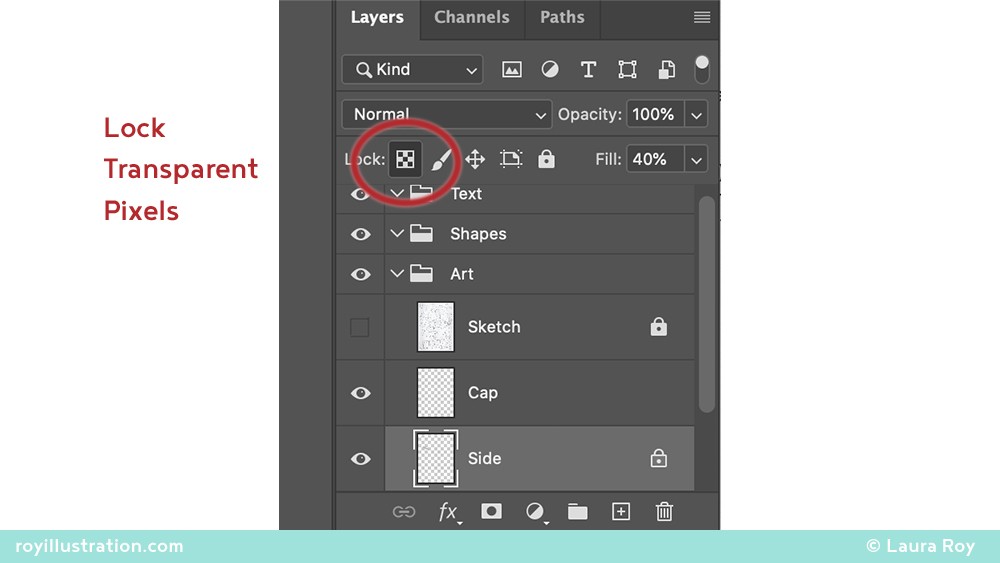
Click the Lock Transparent Pixels icon (the small checkerboard in the Layers panel). This brilliant feature ensures your brushstrokes will only affect the pixels already painted on that layer, keeping your edges razor-sharp.
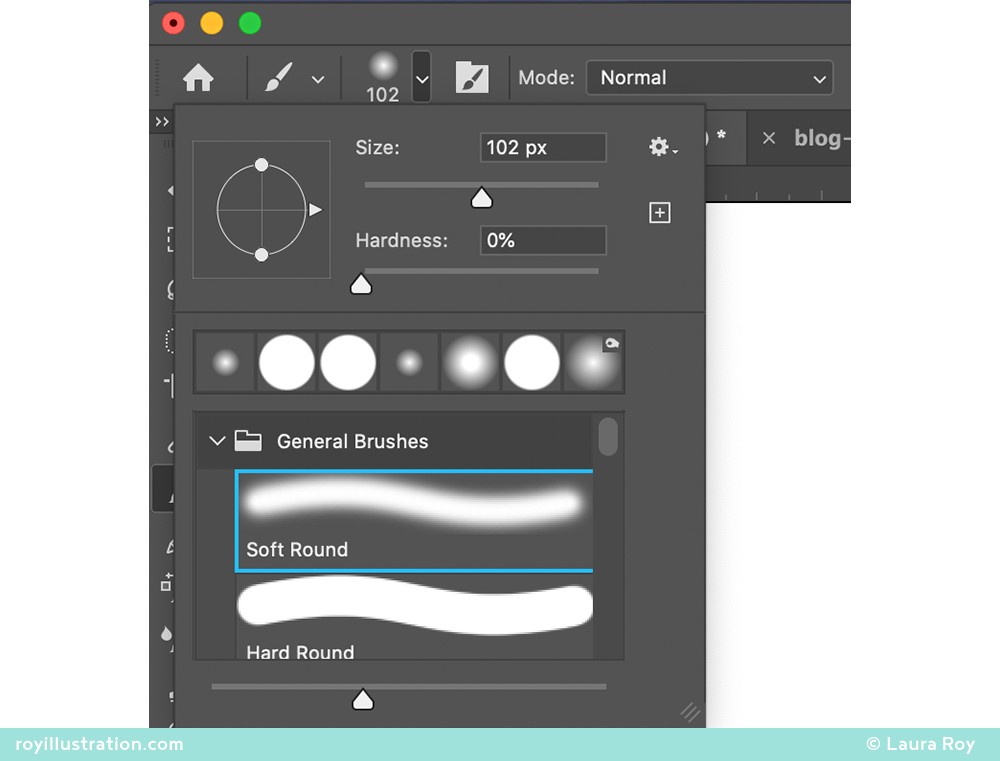
Select the Brush Tool (
B), choose a large, soft-round brush, and pick your shadow value.Gently paint the shadow along the shadowed side of the cone.
Pro-Tip: The shadow transition should not extend across the entire shape. It should wrap around the edge, tapering—thinner near the top point and wider near the base—to accurately suggest the light source.
Step 4:
Sculpting with Light
Now we will paint the form shadow to give the shape dimension.
Select the layer containing the top point of your cone.
Click the Lock Transparent Pixels icon (the small checkerboard in the Layers panel). This brilliant feature ensures your brushstrokes will only affect the pixels already painted on that layer, keeping your edges razor-sharp.
Select the Brush Tool (
B), choose a large, soft-round brush, and pick your shadow value.Gently paint the shadow along the shadowed side of the cone.
Pro-Tip: The shadow transition should not extend across the entire shape. It should wrap around the edge, tapering—thinner near the top point and wider near the base—to accurately suggest the light source.
Step 5:
Refinement & Cleanup
Evaluate & Adjust: In your Paths panel, click the empty gray space to deselect your active paths, then hide your sketch layer to view your uninterrupted render. If your lighting feels flat, use Levels (
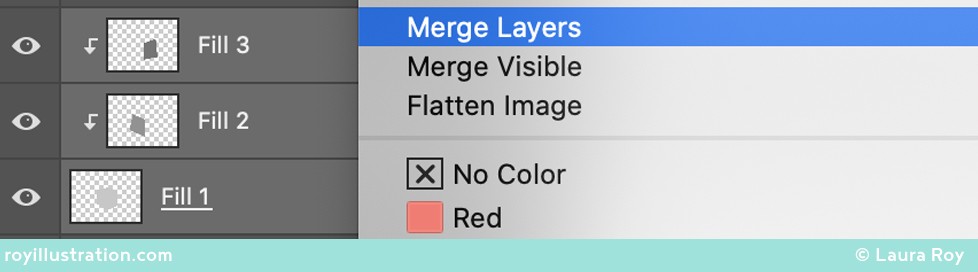
Cmd/Ctrl + L) to push the contrast and ensure your values are bold and readable.Consolidate: Once you are satisfied with the form, select all of your painted shape layers (excluding the sketch), right-click, and choose Merge Layers. Lock this newly merged layer to protect your final rendering.
Archive Your Architecture (Studio Best Practice): For a simple exercise, you can delete your "Work Path" by dragging it to the trash icon. However, for complex scientific illustrations, never delete your paths. Instead, double-click the Work Path and rename it (e.g., "Base Architecture"). This saves your vector blueprint permanently within the document, allowing you to instantly generate perfect masks or make precise edits in the future.
Step 5:
Refinement & Cleanup
Evaluate & Adjust: In your Paths panel, click the empty gray space to deselect your active paths, then hide your sketch layer to view your uninterrupted render. If your lighting feels flat, use Levels (
Cmd/Ctrl + L) to push the contrast and ensure your values are bold and readable.Consolidate: Once you are satisfied with the form, select all of your painted shape layers (excluding the sketch), right-click, and choose Merge Layers. Lock this newly merged layer to protect your final rendering.
Archive Your Architecture (Studio Best Practice): For a simple exercise, you can delete your "Work Path" by dragging it to the trash icon. However, for complex scientific illustrations, never delete your paths. Instead, double-click the Work Path and rename it (e.g., "Base Architecture"). This saves your vector blueprint permanently within the document, allowing you to instantly generate perfect masks or make precise edits in the future.
Key Takeaways
Vector Paths for Flawless Silhouettes
Use overlapping vector paths to establish a flawless silhouette, then leverage "Lock Transparent Pixels" and a soft brush to lay in your dimensional lighting.
Mastering this simple matte cone is the gateway to rendering highly complex forms. In future tutorials, we’ll take this foundational shape further by introducing color, cast shadows, and reflected ambient light.
Key Takeaways
Vector Paths for Flawless Silhouettes
Use overlapping vector paths to establish a flawless silhouette, then leverage "Lock Transparent Pixels" and a soft brush to lay in your dimensional lighting.
Mastering this simple matte cone is the gateway to rendering highly complex forms. In future tutorials, we’ll take this foundational shape further by introducing color, cast shadows, and reflected ambient light.
Did you find this helpful? Do you have any of your own tips you'd like to share? I'd love to hear about it if you decide to try something new. If you use it differently, I'd love to hear that, too!

-Laura
Did you find this helpful? Do you have any of your own tips you'd like to share? I'd love to hear about it if you decide to try something new. If you use it differently, I'd love to hear that, too!