
TUTORIALS • FOUNDATIONS
Rendering a Matte Cylinder and Tube in Illustrator
Why master a basic cylinder in Adobe Illustrator? Because the vector logic used to build this primitive shape is the exact same foundation used to construct complex, high-fidelity tubular structures—from mechanical catheters to intertwined biological vessels. Master this, and you have mastered the first step to rendering structural depth in Illustrator.
The result of this tutorial will be a matte (non-reflective) cylinder and a hollow tube. The difference between this and a complex medical asset is simply the time spent refining reflected ambient light, cast shadows, and surface stylizations.
The Studio Toolbox
Illustrator Tools
Before we begin, ensure you are familiar with these core tools:
Ellipse Tool (
L): * Shift + Drag to pull a perfect circle. Opt/Alt + Drag to pull from the center.Selection Tools (
V&A): The Black Arrow (V) selects whole paths; the White Arrow (A) selects individual anchor points.Duplication: Select a shape with the Black Arrow, hold
Opt/Alt, and drag to pull out a duplicate copy.Pen Tool (
P): Used to draw straight or curved connecting shapes.Pathfinder Panel: Specifically the "Unite" function to fuse overlapping shapes. (Modern Pro-Tip: The Shape Builder Tool (
Shift + M) is a faster, on-the-fly alternative for combining shapes).Gradient Tool (
G) & Gradient Panel: Used to apply linear gradients, define color stops, and adjust the angle and spread of the light transition.Eyedropper Tool (
I): Used to instantly sample and apply the fill/stroke properties from one shape to another.
The Studio Toolbox
Illustrator Tools
Before we begin, ensure you are familiar with these core tools:
Ellipse Tool (
L): * Shift + Drag to pull a perfect circle. Opt/Alt + Drag to pull from the center.Selection Tools (
V&A): The Black Arrow (V) selects whole paths; the White Arrow (A) selects individual anchor points.Duplication: Select a shape with the Black Arrow, hold
Opt/Alt, and drag to pull out a duplicate copy.Pen Tool (
P): Used to draw straight or curved connecting shapes.Pathfinder Panel: Specifically the "Unite" function to fuse overlapping shapes. (Modern Pro-Tip: The Shape Builder Tool (
Shift + M) is a faster, on-the-fly alternative for combining shapes).Gradient Tool (
G) & Gradient Panel: Used to apply linear gradients, define color stops, and adjust the angle and spread of the light transition.Eyedropper Tool (
I): Used to instantly sample and apply the fill/stroke properties from one shape to another.
Step 1:
The Blueprint & Architecture
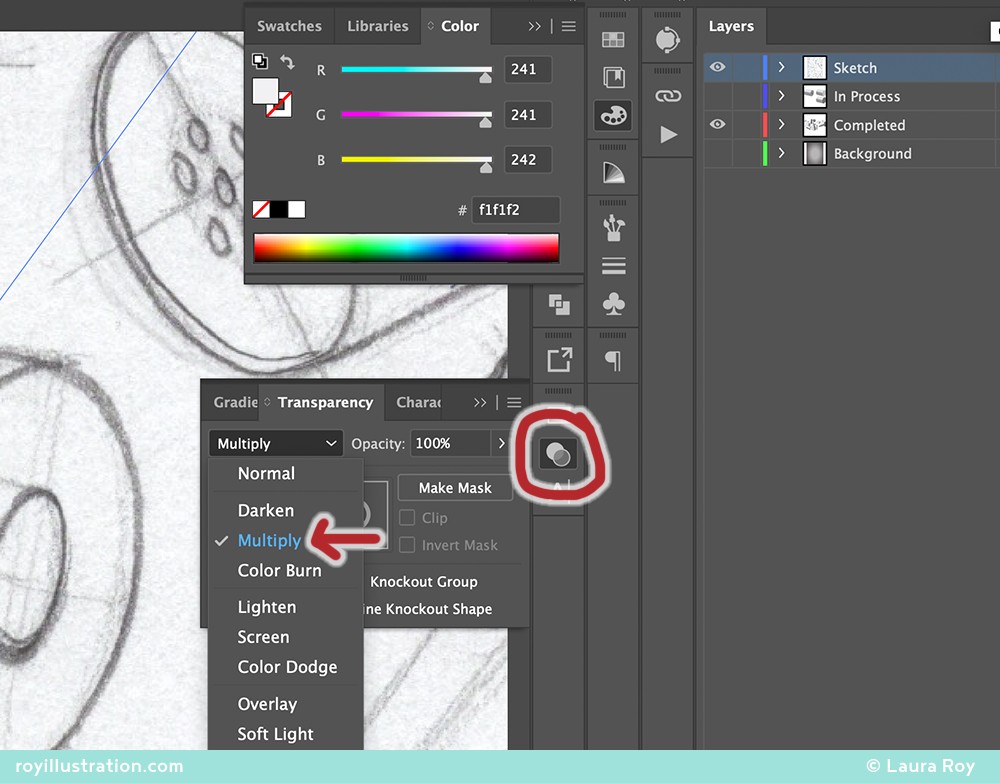
Sketch a cylinder or tube in perspective (keeping 1, 2, or 3-point perspective rules in mind). Place your sketch into your Illustrator document.
Layer Hierarchy: Create three new layers and organize them logically:
Top Layer: "Sketch" (Set Blend Mode to Multiply, lock the layer).
Middle Layer: "In Progress" (This is your active canvas).
Bottom Layer: "Background" (Add a flat rectangle here for contrast).
Step 1:
The Blueprint & Architecture
Sketch a cylinder or tube in perspective (keeping 1, 2, or 3-point perspective rules in mind). Place your sketch into your Illustrator document.
Layer Hierarchy: Create three new layers and organize them logically:
Top Layer: "Sketch" (Set Blend Mode to Multiply, lock the layer).
Middle Layer: "In Progress" (This is your active canvas).
Bottom Layer: "Background" (Add a flat rectangle here for contrast).
Step 2:
Constructing the Vector Silhouette
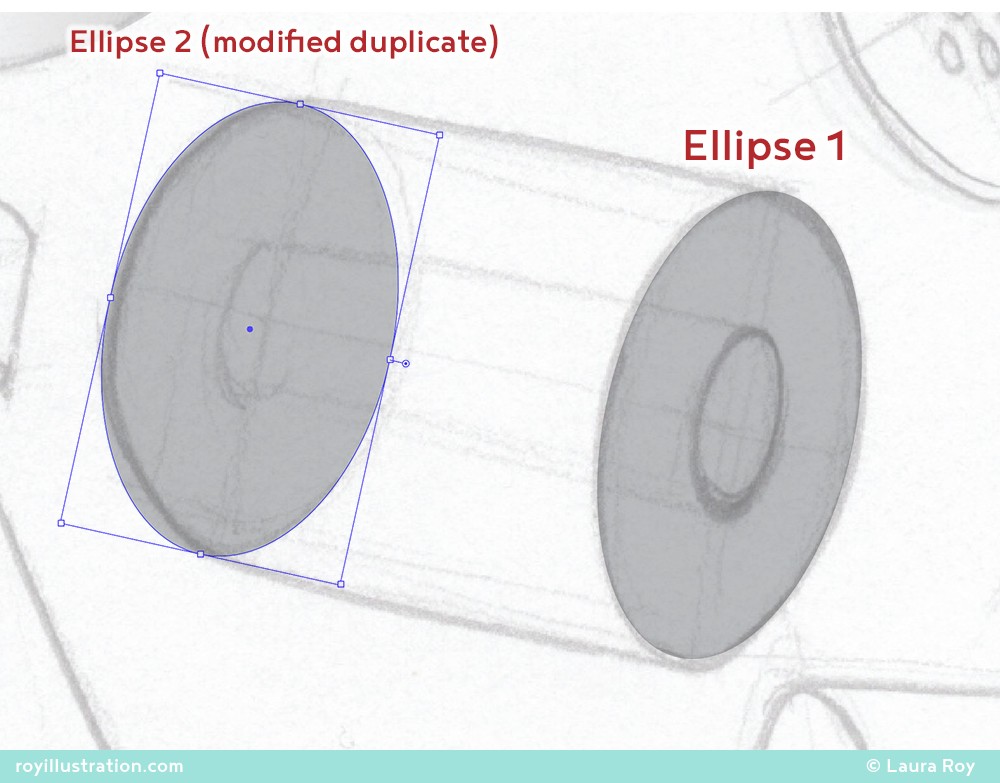
The Front Cap: Use the Ellipse Tool (L) to create the nearest end cap. Transform it to match your sketch's perspective.
Color Setup: Open the Color panel (set to HSB via the hamburger menu). Drag H & S to 0 and choose a light grey. Set the Stroke to None.
The Back Cap: Press
Opt/Altand drag the front ellipse to duplicate it for the far end.Perspective Adjustment: Because this cap is receding in space, make the overall ellipse slightly smaller (diminution) by holding
Shift + Opt/Altwhile scaling. Unless your cylinder is in dead-on 1-point perspective, adjust the degree by widening the minor axis so it appears slightly "rounder" than the front cap.
The Body: Use the Pen Tool (
P) to draw a connecting shape that cleanly bridges the widest tangent points of the two ellipses.
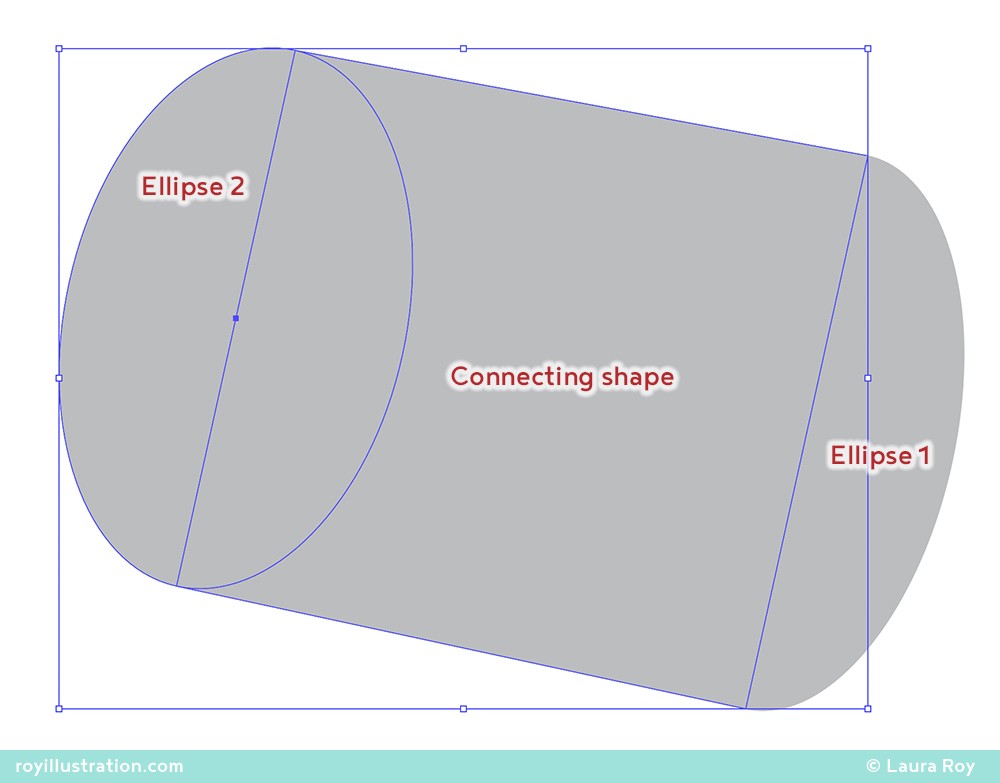
Step 2:
Constructing the Vector Silhouette
The Front Cap: Use the Ellipse Tool (L) to create the nearest end cap. Transform it to match your sketch's perspective.
Color Setup: Open the Color panel (set to HSB via the hamburger menu). Drag H & S to 0 and choose a light grey. Set the Stroke to None.
The Back Cap: Press
Opt/Altand drag the front ellipse to duplicate it for the far end.Perspective Adjustment: Because this cap is receding in space, make the overall ellipse slightly smaller (diminution) by holding
Shift + Opt/Altwhile scaling. Unless your cylinder is in dead-on 1-point perspective, adjust the degree by widening the minor axis so it appears slightly "rounder" than the front cap.
The Body: Use the Pen Tool (
P) to draw a connecting shape that cleanly bridges the widest tangent points of the two ellipses.
Step 3:
Fusing the Form
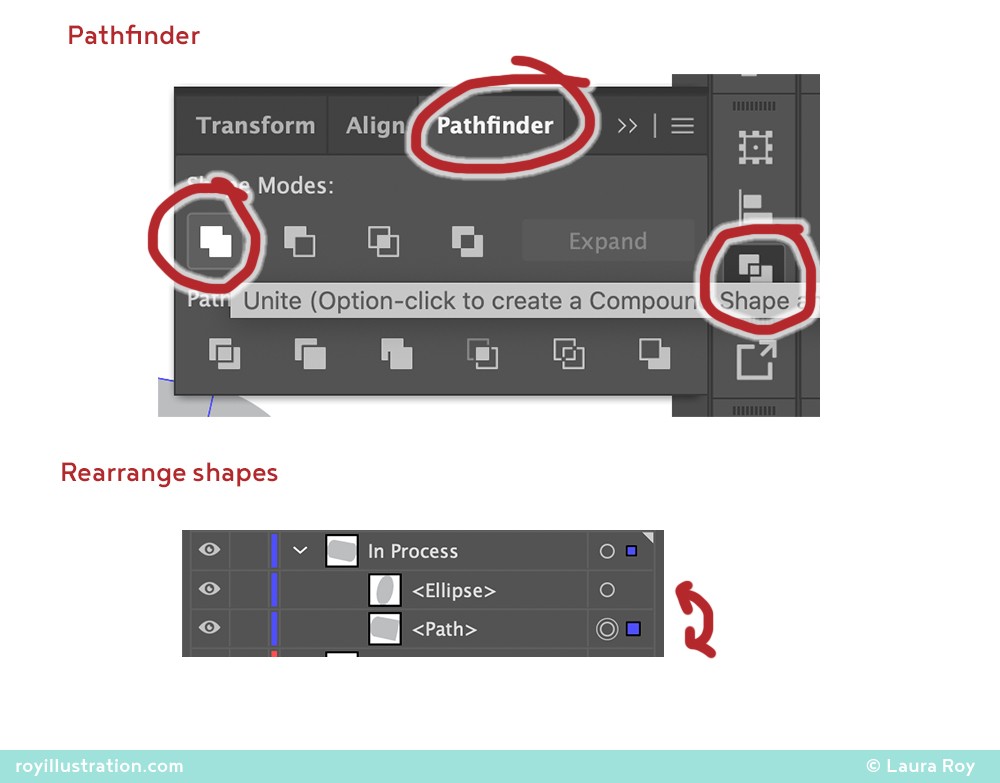
Select the back ellipse and your connecting shape (hold Shift and click both with the Black Arrow).
Open the Pathfinder Panel and click Unite to fuse them into a single, seamless path for the cylinder's body. (Alternatively, select both, grab the Shape Builder Tool (
Shift + M), and drag a line through them to combine).In your Layers Panel (or using
Cmd/Ctrl + [), arrange the shapes so the un-fused Front Cap sits cleanly on top of the fused cylinder body.
Step 3:
Fusing the Form
Select the back ellipse and your connecting shape (hold Shift and click both with the Black Arrow).
Open the Pathfinder Panel and click Unite to fuse them into a single, seamless path for the cylinder's body. (Alternatively, select both, grab the Shape Builder Tool (
Shift + M), and drag a line through them to combine).In your Layers Panel (or using
Cmd/Ctrl + [), arrange the shapes so the un-fused Front Cap sits cleanly on top of the fused cylinder body.
Step 4:
Sculpting with Light
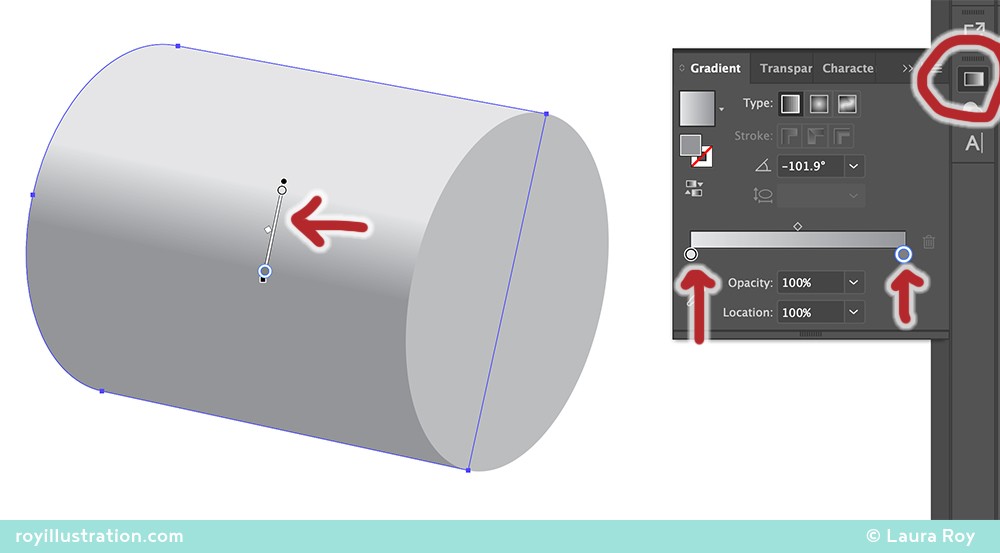
Apply the Base Gradient: Select the cylinder body. Open the Gradient Panel, ensure your Fill is targeted (not the Stroke), and apply a Linear Gradient transitioning between your desired light and shadow values.
Direct the Light: Activate the Gradient Tool (
G) and drag directly across the cylinder body to angle the transition.Pro-Tip: The gradient should not stretch perfectly from edge to edge. Focus the gradient ramp entirely within the "halftone" area—the specific zone where the light actively turns the corner into shadow. Leave flat color on the extreme light and extreme shadow sides for a more realistic read.
Adjust the flat color of the front cap. It should be a mid-tone or highlight value (it should never be darker than the shadow side of the cylinder body).
Step 4:
Sculpting with Light
Apply the Base Gradient: Select the cylinder body. Open the Gradient Panel, ensure your Fill is targeted (not the Stroke), and apply a Linear Gradient transitioning between your desired light and shadow values.
Direct the Light: Activate the Gradient Tool (
G) and drag directly across the cylinder body to angle the transition.Pro-Tip: The gradient should not stretch perfectly from edge to edge. Focus the gradient ramp entirely within the "halftone" area—the specific zone where the light actively turns the corner into shadow. Leave flat color on the extreme light and extreme shadow sides for a more realistic read.
Adjust the flat color of the front cap. It should be a mid-tone or highlight value (it should never be darker than the shadow side of the cylinder body).
Step 5:
Creating a Hollow Tube (Optional)
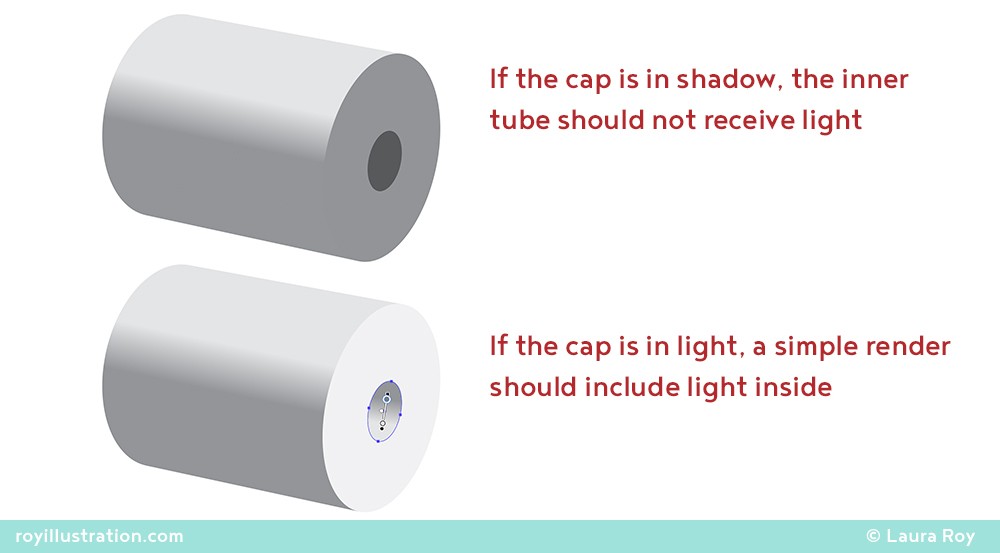
The Inner Wall: Select the front cap ellipse, duplicate it in place (Cmd/Ctrl + C, then Cmd/Ctrl + F), and scale it down slightly while holding Shift + Opt/Alt to maintain its perfect center and degree. Move it slightly "back" along the minor axis to respect the interior perspective.
Interior Lighting Logic:
If the front cap is facing away from the light source (in shadow), fill this inner ellipse with a flat, dark value to simulate deep ambient occlusion.
If the front cap is facing toward the light source, use the Eyedropper Tool (
I) to copy the exterior body's gradient. Then, activate the Gradient Tool (G) and drag in the exact opposite direction to simulate light striking the far inner wall.
Step 5:
Creating a Hollow Tube (Optional)
The Inner Wall: Select the front cap ellipse, duplicate it in place (Cmd/Ctrl + C, then Cmd/Ctrl + F), and scale it down slightly while holding Shift + Opt/Alt to maintain its perfect center and degree. Move it slightly "back" along the minor axis to respect the interior perspective.
Interior Lighting Logic:
If the front cap is facing away from the light source (in shadow), fill this inner ellipse with a flat, dark value to simulate deep ambient occlusion.
If the front cap is facing toward the light source, use the Eyedropper Tool (
I) to copy the exterior body's gradient. Then, activate the Gradient Tool (G) and drag in the exact opposite direction to simulate light striking the far inner wall.
Step 6:
Refinement & Cleanup
Hide your sketch layer to evaluate your crisp vector rendering.
Group your finished objects (
Cmd/Ctrl + G) and rename the group logically.When satisfied, move the group to your "Completed" layer and lock it.
Step 6:
Refinement & Cleanup
Hide your sketch layer to evaluate your crisp vector rendering.
Group your finished objects (
Cmd/Ctrl + G) and rename the group logically.When satisfied, move the group to your "Completed" layer and lock it.
Key Takeaways
Vector Paths for Flawless Silhouettes
Use Pathfinder (or Shape Builder) to architect complex silhouettes from simple primitives. Master the Linear Gradient by tightly controlling the halftone transition zone, and always let core perspective rules dictate the degree and scale of your ellipses.
Key Takeaways
Vector Paths for Flawless Silhouettes
Use Pathfinder (or Shape Builder) to architect complex silhouettes from simple primitives. Master the Linear Gradient by tightly controlling the halftone transition zone, and always let core perspective rules dictate the degree and scale of your ellipses.
Did you find this helpful? Do you have any of your own tips you'd like to share? I'd love to hear about it if you decide to try something new. If you use it differently, I'd love to hear that, too!

-Laura
Did you find this helpful? Do you have any of your own tips you'd like to share? I'd love to hear about it if you decide to try something new. If you use it differently, I'd love to hear that, too!